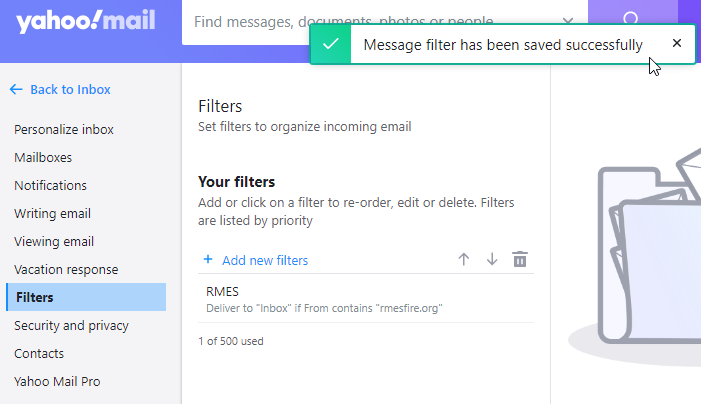
Major email providers (Gmail, Microsoft, Yahoo, etc.) often filter RMES messages into Spam/Junk folders automatically. To ensure you receive our communications:
- Check your Spam/Junk folder regularly
- Follow the steps below to whitelist RMES emails
Gmail
You will need to create a filter to tell Gmail to whitelist email from the domain rmesfire.org and to deliver these emails to your inbox.
1) Sign in to your account.
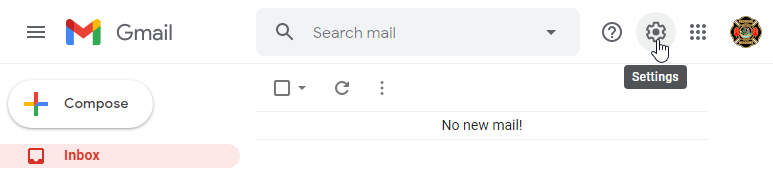
2) Click on the "cog" icon in the top-right corner called "Settings"
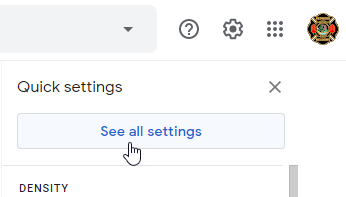
3) Click on the button "See all settings"
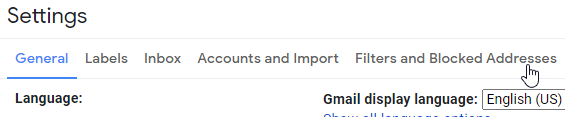
4) In the settings menu click on the menu item "Filters and Blocked Addresses"
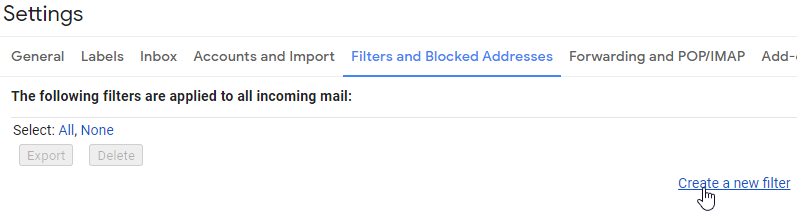
5) While in the "Filters and Blocked Addresses" menu, click on the link "Create a new filter" in the bottom right corner.
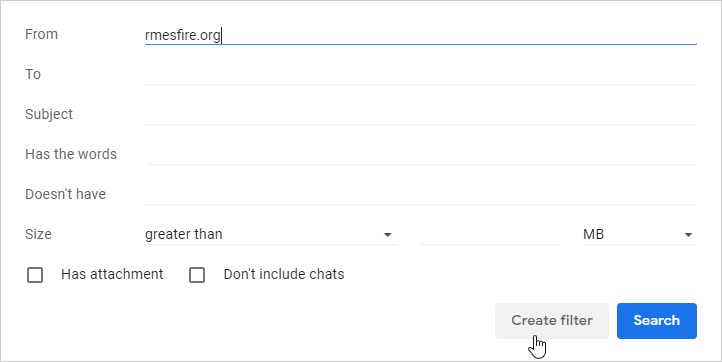
6) In the menu that appears, in the "From" field, type "rmesfire.org" (without the Diaeresis or Umlaut ' " '). Next click on the "Create Filter" button in the bottom right corner.
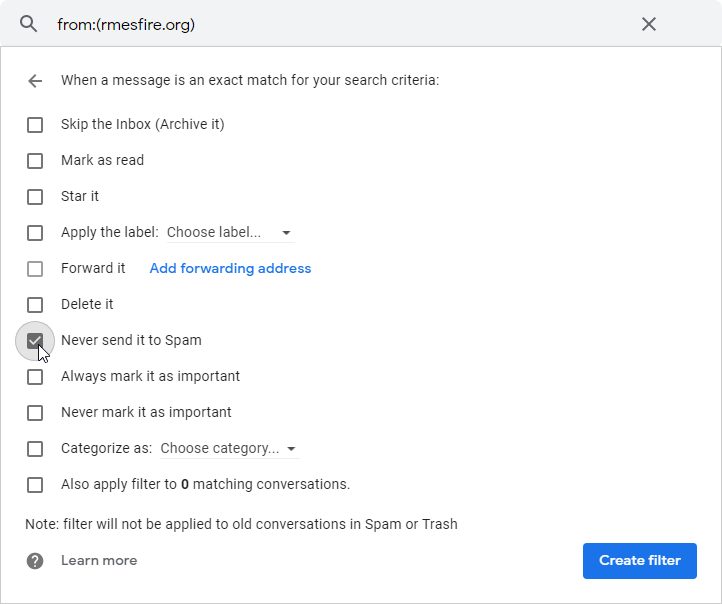
7) In the next menu click the box in front of the item "Never send it to Spam", then click on the button "Create filter" in the bottom right corner.
8) You have now returned to the "Filters and Blocked Addresses" menu where you will see confirmation that the filter has been created.
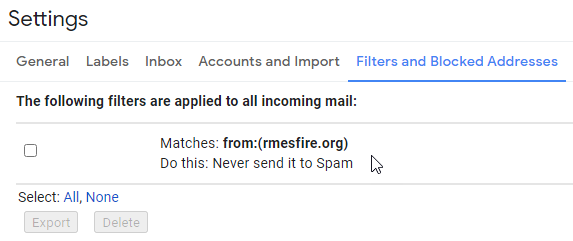
9) At this point you are done and can continue to use Gmail as normal. Emails from RMES will now always end up in your inbox.
10) Emails from RMES will now always arrive in your inbox. Some emails from RMES however, might be marked with the following label in the email body. This message is safe to ignore.

Microsoft (MSN, Hotmail, Live, Office, etc)
You will need to create a filter to tell Microsoft to whitelist email from the domain rmesfire.org and to deliver these emails to your inbox.
1) Sign in to your account.
2) Click on the "cog" icon in the top-right corner called "Settings"

3) Click on the link "View all Outlook settings" at the bottom of the side menu that opened.
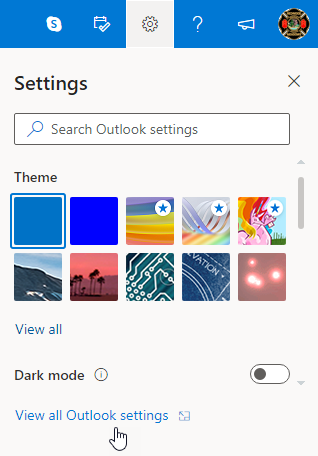
4) In the Settings menu that opens, click on "Mail" -> "Junk email" to enter the "Junk email" sub menu.
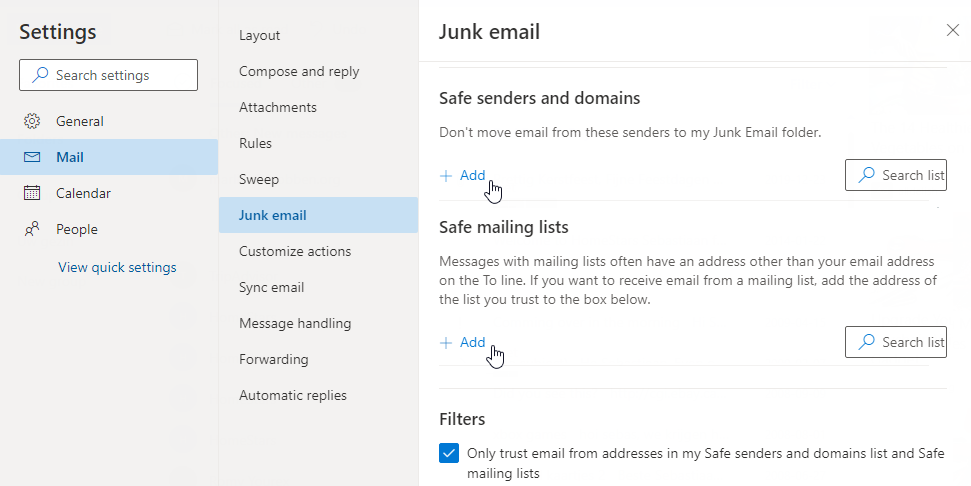
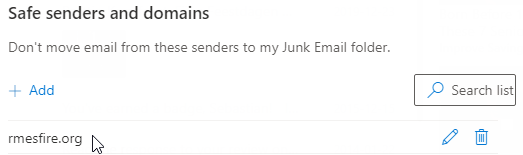
5) Click on the "Add" button under the "Safe senders and domains" heading and type "rmesfire.org" (without the Diaeresis or Umlaut ' " ') in the box that appears.

6) Press enter and you will see the domain "rmesfire.org" added to your "Safe senders and domains" list.
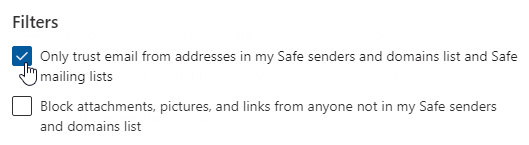
7) For extra safety click the box "Only trust email from addresses in my Safe senders and domains list and Safe mailing list" on the bottom of the "Junk email" sub menu.
8) Click on the "Save" button in the bottom right corner to save your settings.
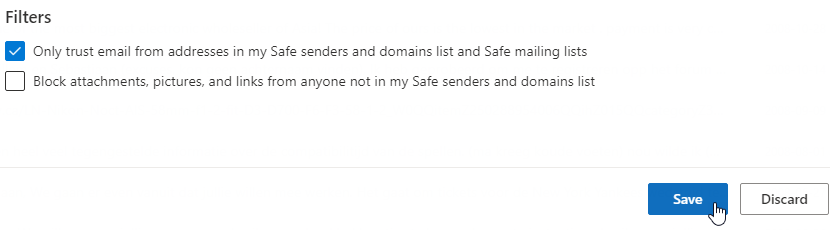
9) Emails from RMES will now arrive in your inbox.
Yahoo!
You will need to create a filter to tell Yahoo! to whitelist email from the domain rmesfire.org and to deliver these emails to your inbox.
1) Sign in to your account.
2) Click on the "cog" icon in the top-right corner called "Settings"

3) Click on the link "More Settings" at the bottom of the side menu that opened.
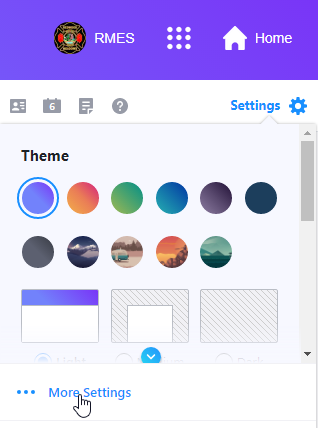
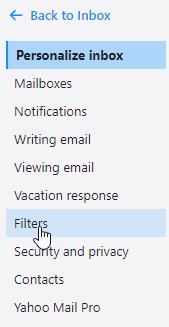
4) Click on "Filters"
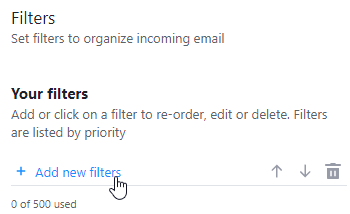
5) Click on "Add new filters"
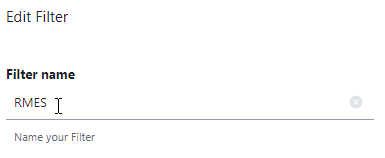
6) In the box under "Filter name" type "RMES" (without the Diaeresis or Umlaut ' " ')
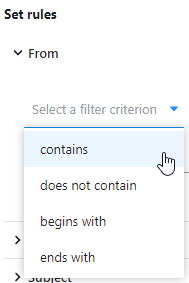
7) Under the "Set rules" -> "From" drop down menu "Select a filter criterion" select "contains"
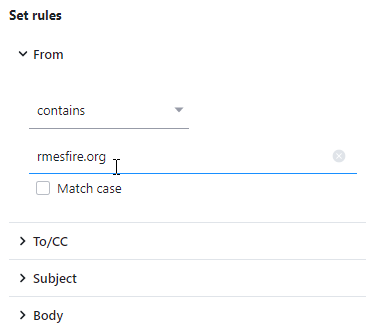
8) Under the "Set rules", "From" type "rmesfire.org" (without the Diaeresis or Umlaut ' " ') in the text box
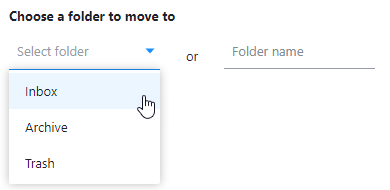
9) Under "Choose a folder to move to" from the drop down "Select folder" select "Inbox"
10) Press the "Save" button at the bottom of the menu
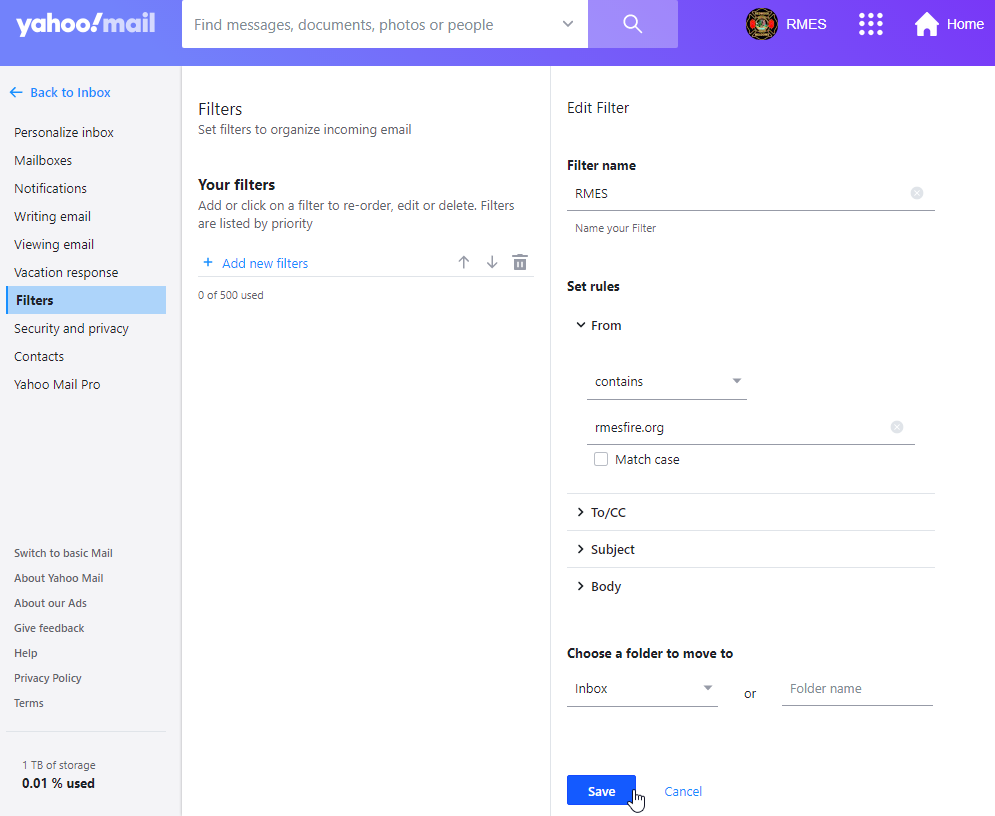
11) The filter has now been created and email from RMES will now arrive in your inbox. You can can now continue to use Yahoo! as you normally would.